
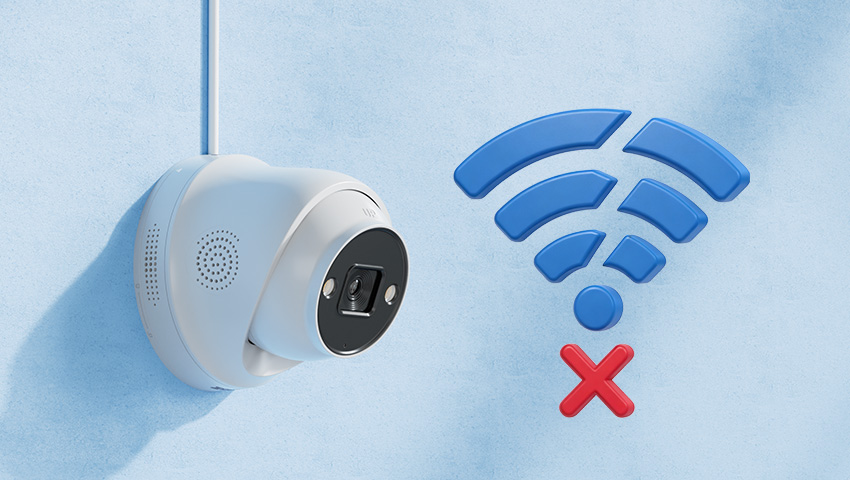
Seeing “Offline” when you check your security camera can be frustrating—especially when you expect your camera to be monitoring your home, driveway, garage, or other important areas.
The good news is that an offline security camera does not necessarily mean there is a serious problem with the camera itself. In many cases, the cause is something simple, such as a temporary network issue, weak Wi-Fi signal, loose cable, or interrupted power supply.
In this guide, we’ll explain why your security camera may be offline, how to troubleshoot it step by step, and how to prevent it from happening again.
Contents
Why Does My Security Camera Say “Offline”?
When a security camera shows as offline in an app or on an NVR, it generally means the camera is not currently communicating with the network or recording system.
The exact cause depends on how your camera connects.
Wi-Fi camera: The camera may have lost its Wi-Fi connection.
PoE camera: The Ethernet cable, PoE connection, NVR, or network may have a problem.
4G/LTE camera: The cellular connection, SIM card, or mobile data service may be unavailable.
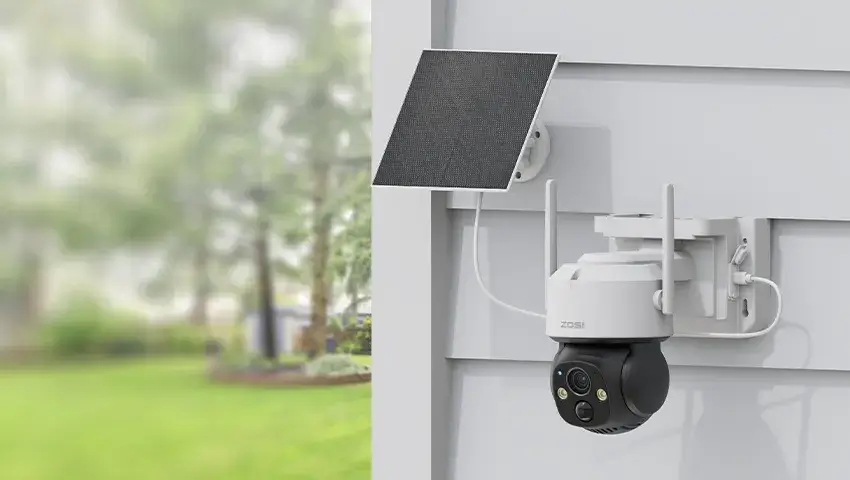
Solar camera: The battery may be too low to keep the camera running.
NVR system: The NVR, network connection, or individual camera connection may be interrupted.
Before changing any settings, it’s best to start with the simplest possibilities first.
10 Common Reasons Why Your Security Camera Is Offline
1. The Camera Has Lost Power
One of the most common reasons for an offline camera is simply no power.
Check whether:
The power adapter is properly connected.
The power cable is firmly plugged in.
The outlet or power strip is working.
The camera’s status light is on, if applicable.
A power outage or interruption recently occurred.
For PoE cameras, remember that the Ethernet cable can provide both power and network connectivity. A problem with the PoE connection can therefore cause the camera to go offline.
For battery or solar-powered cameras, check the battery level and charging status.
What to do:
Reconnect the power supply and wait a few minutes for the camera to restart. If possible, test the outlet or power source with another device.
2. Your Wi-Fi Connection Is Weak or Unstable
If you’re using a Wi-Fi security camera, the camera needs a sufficiently stable wireless connection to communicate with your router.
A camera installed too far from the router may frequently disconnect, particularly when there are:
Thick walls
Concrete floors
Metal structures
Large appliances
Multiple walls between the camera and router
The problem may be more noticeable with cameras installed outdoors, in garages, or at the far end of a property.
What to do:
Move the router closer to the camera if possible, improve your home’s Wi-Fi coverage, or consider a compatible Wi-Fi extender or mesh network.
Keep in mind that a phone may still show a good Wi-Fi connection in one location while the camera has a much weaker signal where it is installed.
3. Your Router or Network Has a Problem
Sometimes the camera is working normally, but the home network isn’t.
Your router may have temporarily lost its internet connection, restarted, or experienced network congestion.
Check whether other devices connected to the same network can access the internet.
If multiple smart devices suddenly stop connecting, the router is a good place to start troubleshooting.
What to do:
Check your router’s status.
Confirm that other devices have internet access.
Restart the router if necessary.
Wait for the network to fully reconnect.
Check whether the camera comes back online.
A simple router restart can sometimes resolve a temporary network problem.
4. Your Wi-Fi Password or Network Has Changed
Did you recently:
Change your Wi-Fi password?
Replace your router?
Change your Wi-Fi name?
Switch internet providers?
Change your network settings?
If so, your camera may still be trying to connect using the old network information.
Unlike a phone or laptop, a security camera cannot always automatically switch to a new Wi-Fi network.
What to do:
Reconnect the camera to the correct Wi-Fi network through the appropriate ZOSI app or setup process.
If you recently upgraded your router, check the camera’s network requirements before reconnecting it.
5. A Network or Ethernet Cable Is Loose or Damaged
For wired cameras and PoE systems, check the physical connection.
A loose, damaged, or improperly connected Ethernet cable can cause the camera to appear offline.
Inspect:
Camera-side Ethernet connections
NVR-side connections
PoE switch connections
Network cables
Connectors and ports
Outdoor cable installations should also be checked for signs of moisture, physical damage, or wear.
What to do:
Disconnect and reconnect the Ethernet cable firmly. If available, test with another compatible Ethernet cable or port to determine whether the cable or port is causing the problem.
6. The Camera or NVR Needs a Restart
Electronic devices can occasionally experience temporary connection issues.
Restarting the camera, NVR, or router can refresh the connection and clear a temporary software or network problem.
For an NVR system, you can try restarting the NVR and checking whether the affected camera reconnects afterward.
Tip: If only one camera is offline while the others remain online, focus your troubleshooting on that camera and its individual connection first.
If all cameras are offline at the same time, check the NVR, router, network, and power supply first.
7. The Camera or NVR Software Needs Attention
Outdated firmware or temporary software issues can sometimes affect device connectivity.
If your camera repeatedly goes offline even though the network and power supply appear stable, check whether a firmware update is available for your device.
Before updating firmware:
Confirm the exact camera model.
Use the correct firmware version.
Follow the manufacturer’s update instructions.
Avoid disconnecting power during the update.
Keeping your camera and NVR firmware up to date can also help maintain compatibility and system stability.
8. There May Be a Network Configuration or IP Conflict
Some wired security camera systems rely on network addressing to communicate between cameras and the NVR.
Network changes can occasionally cause connection problems.
For example, problems may occur after:
Replacing a router
Changing network settings
Reconfiguring the NVR
Adding new network devices
Changing the network topology
If basic troubleshooting doesn’t work, check the camera’s network configuration and NVR settings according to your system’s instructions.
For users who aren’t familiar with network settings, it’s usually better to avoid changing advanced configurations unnecessarily.
9. Your 4G/LTE Camera Has Lost Its Cellular Connection
A 4G security camera doesn’t depend on your home Wi-Fi, but it still needs a working cellular connection.
If a 4G camera goes offline, check:
SIM card installation
SIM card status
Mobile data availability
Cellular signal strength
Data plan status
Local network coverage
A 4G camera installed in a remote location may also experience unstable connectivity if cellular coverage is weak.
What to do:
Check the SIM card and cellular signal first. If the camera previously worked normally in the same location, check whether the mobile data plan or cellular service is still active.
10. Your Solar Camera May Have Low Battery Power
Solar security cameras are designed to operate without a traditional wired power connection, but their batteries still need sufficient power.
During periods of:
Several cloudy or rainy days
Limited sunlight
Heavy shade
Shorter daylight hours
High camera activity
the battery may not receive enough energy to maintain normal operation.
When the battery becomes critically low, the camera may shut down or appear offline.
What to do:
Check the battery level and make sure the solar panel receives adequate sunlight. Keep the panel clean and free from leaves, dirt, or other obstructions.
How to Fix an Offline Security Camera: Step-by-Step
If your camera is offline, don’t immediately reset it. Try these steps in order.
Step 1: Check the Power
Make sure the camera is receiving power and check whether its indicator light or other status signal is active.
Step 2: Check the Physical Connection
For wired cameras, inspect the Ethernet and power connections.
For solar or battery-powered cameras, check the battery level.
Step 3: Check Your Network
Confirm that your router is working and that other devices can connect normally.
Step 4: Check the Wi-Fi Signal
If you’re using a Wi-Fi camera, make sure it is within a suitable range of your router.
Step 5: Restart the Camera
Power the camera off and back on, then allow a few minutes for it to reconnect.
Step 6: Restart Your Router or NVR
If the problem continues, restart the relevant network device or NVR.
Step 7: Reconnect the Camera
If the camera still appears offline, reconnect it to your Wi-Fi network or add it back to the NVR according to your camera’s setup instructions.
Step 8: Check Firmware and Settings
Make sure your camera and NVR are using the appropriate firmware and configuration.
Step 9: Reset the Camera
A factory reset can be useful when other troubleshooting methods fail, but it should generally be treated as a last resort because you may need to configure the camera again afterward.
Step 10: Contact Customer Support
If the camera remains offline after these steps, contact the manufacturer’s customer support team for further assistance.
How to Prevent Your Security Camera from Going Offline
Fixing an offline camera is useful, but preventing the problem is even better.
Choose the Right Installation Location
For Wi-Fi cameras, install the camera where it can maintain a stable wireless connection.
For solar cameras, choose a location with sufficient sunlight.
For outdoor cameras, make sure the installation location and cable connections are properly protected from the elements.
Keep Your Network Stable
A reliable router and sufficient Wi-Fi coverage can make a significant difference, especially when you have multiple cameras and smart-home devices connected at the same time.
Check Power and Cables Regularly
For wired systems, inspect cables and connectors occasionally, especially after severe weather or maintenance work around the property.
Keep Firmware Updated
Regularly check for firmware updates for your compatible cameras and NVRs.
Monitor Battery Levels
For battery and solar-powered cameras, periodically check battery status and make sure the solar panel remains unobstructed.
Avoid Unnecessary Network Changes
If you change your router, Wi-Fi name, or password, remember that connected security cameras may need to be configured again.
When Should You Contact Customer Support?
If you’ve checked the power, network, cables, and basic settings but the camera still won’t reconnect, professional support may be the next step.
You should consider contacting customer support if:
The camera does not power on.
The camera repeatedly goes offline after reconnecting.
A wired camera still isn’t detected after changing cables or ports.
The camera cannot be added to the app or NVR.
The camera appears to have physical or water damage.
Multiple troubleshooting attempts have failed.
When contacting support, having your camera model, NVR model, connection type, and a description of the problem ready can help speed up the troubleshooting process.
FAQs
Why does my security camera keep going offline?
Repeated disconnections are commonly related to unstable power, weak Wi-Fi, router issues, loose cables, or network configuration problems. For solar and 4G cameras, battery level and cellular connectivity should also be checked.
Can weak Wi-Fi make my security camera go offline?
Yes. A weak or unstable Wi-Fi signal can cause a wireless camera to disconnect or repeatedly switch between online and offline status.
Why is my camera offline when my Wi-Fi is working?
Your internet connection may be working normally while the camera has a separate connection problem. Check the camera’s power, Wi-Fi signal strength, network credentials, and connection to the router.
Will restarting my security camera fix the problem?
It can. A restart may resolve temporary network or software issues. If the camera frequently goes offline after restarting, however, there may be an underlying network, power, or hardware issue.
Conclusion
An offline security camera doesn’t always mean something is seriously wrong. In many cases, the solution is as simple as restoring power, improving the Wi-Fi connection, reconnecting a cable, or restarting your network.
The key is to troubleshoot from the simplest causes to the more advanced ones.
Whether you’re using a Wi-Fi camera, PoE system, 4G camera, or solar-powered security camera, understanding how your camera connects makes it much easier to find the cause and get your system back online.
Need more help with your ZOSI security camera? Explore ZOSI’s product guides, setup resources, and support information for your specific camera or security system.
Related Posts
 Security Camera Not Recording? Common Causes and How to Fix It
 Why is My Alexa Ring Yellow? Fixes & Tips Explained
 Solar Panel Not Charging Battery: Causes and Solution
 Why Is Alexa Not Working? Easy Fixes for Alexa Not Responding or Connecting
 How to Stop Flying Bugs Around Night Vision Security Cameras (8 Easy Fixes)