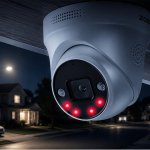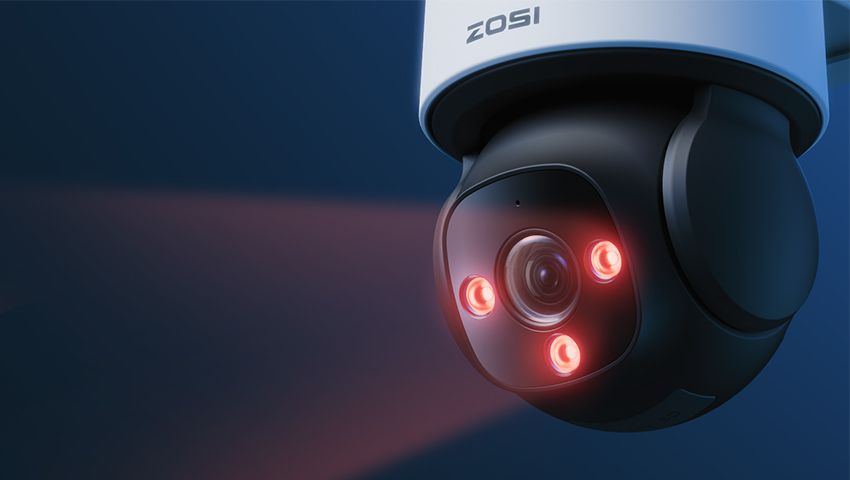
A security camera can capture clear footage during the day but struggle to deliver the same image quality after sunset. You might notice dark areas, blurry images, grainy footage, or bright spots that make it difficult to identify people and objects.
The good news is that you may not need to replace your camera to solve these problems. The right installation position, better lighting, a clean lens, and a few adjustments to your camera settings can make a noticeable difference.
In this guide, we’ll explain how security camera night vision works, share eight practical ways to improve nighttime image quality, and walk you through common night vision problems so you can get clearer footage after dark.
Contents
How Does Security Camera Night Vision Work?
Before improving your camera’s nighttime performance, it’s helpful to understand which type of night vision it uses. Different technologies rely on different light sources and image-processing methods, so the best way to improve image quality depends on your camera.
1. Infrared (IR) Night Vision
Infrared night vision uses infrared LEDs to illuminate an area with light that is invisible or barely visible to the human eye. The camera captures the reflected infrared light and typically produces a black-and-white image in low-light conditions.
IR night vision is useful for monitoring areas with little or no visible light, such as backyards, side entrances, garages, and driveways.
However, the image can become darker as the distance from the camera increases. Nearby objects, glass, dust, or moisture can also reflect infrared light and create glare or hazy footage.
2. Full-Color Night Vision
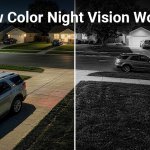
Full-color night vision uses available ambient light, a more light-sensitive image sensor, or supplemental visible lighting to capture color images in low-light conditions. Depending on the camera, it may use built-in spotlights or other low-light imaging technology.
Color footage can make it easier to distinguish details such as clothing colors, vehicle colors, and the appearance of objects at night.
However, not every full-color night vision camera works in complete darkness without additional illumination. Performance depends on the camera’s technology and the amount of available light.
3. Automatic Day/Night Switching
Many security cameras automatically switch between daytime and nighttime modes according to ambient light levels. When the environment becomes dark enough, the camera may activate infrared illumination and switch to black-and-white recording.
Some cameras also offer manual controls for night vision, infrared illumination, or supplemental lighting.
If your camera’s night vision isn’t working as expected, check its settings and user manual before making other adjustments.
8 Ways to Improve Security Camera Night Vision
1. Clean the Camera Lens and Protective Cover
A dirty lens is one of the easiest problems to overlook. During the day, dust, fingerprints, water spots, and spiderwebs may have only a minor effect on the image. At night, however, infrared light can reflect off these contaminants and create glare, haze, or bright patches.
To improve image clarity:
Wipe the lens or protective cover gently with a clean, soft microfiber cloth.
Remove spiderwebs, dust, and other obstructions around the camera.
Check for condensation or water droplets on the protective cover.
Remove any installation film that is meant to be taken off.
Inspect the lens cover for scratches or damage.
For outdoor cameras, check the lens periodically, especially after rain or during seasons when spiders and insects are more active. Follow the manufacturer’s cleaning instructions to avoid damaging the lens coating or waterproof seals.
2. Choose the Right Installation Location and Angle
Camera placement directly affects how much useful detail you can capture at night.
If your camera is installed too high, the infrared light may not adequately illuminate the area where people or vehicles appear. If it is aimed too far away, the image may show a wide scene without enough detail for identification.
For better results:
Position the camera at a height and angle suitable for the area you want to monitor.
Aim it toward important areas, such as entrances, gates, driveways, and walkways.
Avoid pointing it directly at bright streetlights, floodlights, or other strong light sources.
Keep nearby walls, eaves, and other surfaces from obstructing the camera’s view.
Test the nighttime image from the camera’s live view before finalizing the installation.
If you need to monitor a large yard or driveway, consider whether one camera can provide sufficient detail across the entire area. In some situations, two appropriately positioned cameras will provide better coverage than a single camera with a very wide field of view.
3. Avoid Reflective Surfaces and Nearby Obstacles
Infrared reflection is a common cause of poor nighttime footage.
When infrared light hits a nearby object, it can bounce back toward the lens. This may produce a washed-out image, white spots, bright foreground objects, or dark background areas.
Common sources of reflection include:
Walls, ceilings, and roof eaves close to the camera
Glass windows and doors
White or shiny surfaces
Nearby branches, bushes, and other vegetation
Dust, spiderwebs, and moisture on the lens cover
To reduce reflections, adjust the camera’s angle or position so that nearby objects do not interfere with its infrared illumination. Trim vegetation that blocks the view, and avoid placing an infrared camera behind glass when you intend to monitor an outdoor area.
Important: Infrared light from a camera positioned behind a window can reflect off the glass and obscure the outdoor image. For monitoring through a window, use a camera designed for that setup and follow its installation instructions. If appropriate, disable the built-in IR illumination and provide suitable lighting outside.
4. Add Appropriate Lighting When Needed
Additional lighting can be one of the most effective ways to improve nighttime image quality, especially when the camera struggles to capture details in very dark areas.
Depending on your camera and monitoring needs, you can:
Install an outdoor LED light near a driveway or entrance.
Use a motion-activated floodlight to illuminate activity when it occurs.
Enable a camera’s built-in spotlight if it supports full-color night vision.
Add a compatible external infrared illuminator to improve coverage in dark areas.
Visible white light can help a suitable camera capture color footage, while an external IR illuminator can support black-and-white infrared night vision.
Position any additional light carefully. A light aimed directly into the camera can cause glare, overexposure, or darkened background details. Whenever possible, illuminate the monitored area rather than shining the light straight into the lens.
If you prefer to keep your property dark at night, a camera with effective infrared night vision or low-light imaging technology may be a better fit.
5. Adjust Night Vision and Image Settings
Some security cameras provide settings that can help improve nighttime performance. Available options vary by model, so consult your camera’s manual or app before making changes.
Here are several settings worth checking:
Night Vision or IR Mode: Make sure night vision is enabled if your camera relies on infrared illumination. If the camera offers automatic and manual modes, check which mode is appropriate for your environment.
Exposure and Brightness: If the image appears too dark, check whether exposure or brightness adjustments are available. Increase them gradually and review the results, as excessive brightness can wash out highlights or introduce more visible noise.
Wide Dynamic Range (WDR): On supported cameras, WDR can help balance scenes with both bright and dark areas. It may improve visibility near entrances with strong lighting contrasts, although it cannot compensate for every lighting problem.
Spotlight Settings: If your camera has a built-in spotlight, check whether it is enabled and configured to turn on automatically, manually, or when motion is detected.
Image Resolution: Confirm that the camera is recording at an appropriate resolution. Higher resolution can preserve more detail when conditions allow, but it cannot restore information lost because of insufficient light, motion blur, or overexposure.
Avoid changing every setting at once. Adjust one option, check the nighttime footage, and compare the results so you can identify what actually helps.
6. Reduce Glare and Overexposure from Infrared Light
If the nighttime image looks unusually bright near the camera but dark in the distance, the problem may be excessive infrared reflection rather than insufficient illumination.
For example, a bush close to the lens may reflect a large amount of infrared light. The camera may then struggle to capture details in the darker background.
Try these steps:
Remove objects that obstruct the camera’s field of view.
Adjust the camera so that its infrared light does not hit nearby walls or other reflective surfaces.
Clean the lens cover and check for moisture.
If your camera supports adjustable IR intensity, reduce it and compare the results.
If necessary, consider a compatible external IR illuminator positioned to light the target area more evenly.
The goal is not simply to make the entire image brighter. It is to distribute light more effectively so that important details remain visible throughout the scene.
7. Check the Power Supply, Connection, and Firmware
Nighttime image problems are not always caused by lighting or installation.
If your camera works normally during the day but behaves abnormally after dark, check its power supply and connections. Some models use additional power when infrared LEDs or spotlights activate. An inadequate or unstable power supply may affect operation.
You can also:
Confirm that the camera is using its recommended power adapter.
Check power and video cables for loose connections or damage.
Inspect the network connection if live viewing or playback quality is inconsistent.
Restart the camera if night vision stops working unexpectedly.
Check for compatible firmware updates and follow the manufacturer’s update instructions.
If the camera still fails to switch into night mode, its light sensor, infrared components, or other hardware may need inspection. Contact the manufacturer’s support team if basic troubleshooting does not resolve the problem.
8. Choose a Camera with Suitable Night Vision Capabilities
Sometimes, the camera itself is not well suited to the environment.
For example, a camera designed for a small porch may not provide sufficient nighttime detail across a large driveway. Similarly, a camera that depends on ambient light may struggle in an area with no nearby lighting.
When choosing a camera, consider:
Night vision range: Check the manufacturer’s specifications, but remember that the maximum illumination range does not guarantee clear facial or vehicle details at that distance.
Low-light sensitivity: A more light-sensitive sensor may perform better in dim environments.
Infrared illumination: Consider whether the built-in IR range suits the area you need to monitor.
Full-color night vision: Look for a model that supports color footage under the lighting conditions available at your property.
Resolution and field of view: Choose a balance that provides enough detail for your monitoring needs.
Environmental suitability: Make sure the camera is designed for indoor or outdoor use as required.
For homeowners who want color footage after dark, ZOSI offers night vision options designed for different monitoring environments. For example, ZOSI Aurora Lux technology is designed to capture full-color nighttime images without relying on a visible spotlight. Actual results will depend on the camera model, scene, and available light.
Selecting the right camera from the start can make it easier to achieve reliable nighttime monitoring without repeatedly adjusting your installation.
How to Fix Common Security Camera Night Vision Problems
If your security camera’s nighttime footage still looks poor after making adjustments, identifying the specific problem can help you find the right solution.
1. Black-and-White Footage at Night
Possible cause: Many security cameras automatically switch to infrared (IR) night vision when ambient light becomes too low for color imaging.
How to fix it: This is normal for cameras with traditional IR night vision. If you want color footage after dark, check whether your camera supports full-color night vision and whether it requires additional lighting.
2. Bright White Spots or a Washed-Out Image
Possible cause: Infrared light may be reflecting off nearby walls, glass, spiderwebs, dust, or moisture on the lens cover.
How to fix it: Clean the lens, remove nearby obstructions, and adjust the camera angle to reduce reflections. If your camera supports adjustable IR intensity, try lowering it.
3. Dark Background with a Bright Foreground
Possible cause: Objects close to the camera may reflect too much infrared light, making the foreground appear bright while distant areas remain dark.
How to fix it: Reposition the camera to avoid nearby reflective surfaces. If necessary, use a compatible external IR illuminator to distribute light more evenly across the monitored area.
4. Grainy or Noisy Nighttime Footage
Possible cause: Insufficient light, limited low-light sensitivity, or excessive digital amplification can make nighttime images look grainy.
How to fix it: Add appropriate lighting, check the camera’s exposure settings if available, and consider whether its low-light capabilities suit your environment.
5. Blurry Moving People or Vehicles
Possible cause: Low light can require longer exposure times, increasing motion blur when people or vehicles move through the scene. Focus problems or dirty lenses can also reduce clarity.
How to fix it: Improve the lighting, clean the lens, and check the focus if it is adjustable. Review recorded footage to determine whether the blur occurs mainly during movement.
6. Night Vision Does Not Turn On
Possible cause: Incorrect settings, insufficient power, a malfunctioning light sensor, or an issue with the infrared components may prevent the camera from switching to night mode.
How to fix it: Check the night vision settings, test the camera in a dark environment, and verify that the power supply meets the manufacturer’s requirements. Restart the camera if necessary. If the problem persists, contact the manufacturer’s support team.
7. Hazy Outdoor Footage
Possible cause: Condensation, water droplets, dirt, or spiderwebs on the lens cover can scatter light and reduce nighttime clarity.
How to fix it: Clean the lens cover, remove obstructions, and inspect it for moisture or damage. If condensation repeatedly appears inside the camera, contact the manufacturer for guidance.
Troubleshooting tip: Start with the simplest checks: clean the lens, inspect the camera’s surroundings, and review the night vision settings. If the problem continues, test the camera in another suitable environment to help determine whether the issue comes from the installation or the camera itself.
IR Night Vision vs. Full-Color Night Vision: Which Is Better?
Both infrared (IR) night vision and full-color night vision can help you monitor your property after dark. However, they work differently and are suited to different environments.
Infrared (IR) Night Vision
Infrared night vision uses infrared LEDs to illuminate an area without requiring visible light. The camera captures the reflected infrared light and typically produces black-and-white footage.
Advantages:
Works in complete darkness when the camera’s IR illumination is sufficient.
Does not require visible lighting, making it suitable for areas where you want to keep the surroundings dark.
Works well for monitoring side entrances, garages, backyards, and other low-light areas.
Limitations:
Footage is typically black and white, so color details such as clothing or vehicle colors are unavailable.
Infrared reflections from nearby objects, glass, or moisture can affect image quality.
Image detail may decrease at greater distances or when illumination is insufficient.
Best for: Homeowners who need dependable nighttime monitoring in dark environments without adding visible lighting.
Full-Color Night Vision
Full-color night vision captures color images in low-light conditions using a light-sensitive sensor, available ambient light, or supplemental visible lighting, depending on the camera’s technology.
Advantages:
Provides color details that can help distinguish people, vehicles, and objects.
Can offer more useful visual context when reviewing nighttime events.
Is well suited to entrances, driveways, and other areas where identifying visual details is important.
Limitations:
Some models require ambient light or a built-in spotlight to produce color footage.
Performance can decline in extremely dark environments if the camera lacks sufficient illumination.
Supplemental visible lighting may not be suitable for every location.
Best for: Homeowners who want more visual detail at night, particularly in areas where identifying clothing colors, vehicle colors, and other distinguishing features is useful.
FAQs
1. How far can a security camera see at night?
Night vision range varies by model, infrared illumination, sensor sensitivity, lens, and environmental conditions. A camera’s advertised IR range indicates how far its illumination may reach under specified conditions, not necessarily the distance at which it can clearly identify a face or license plate.
2. Why does my security camera show white spots or a white haze at night?
White spots or haze often result from infrared light reflecting off dust, water droplets, spiderwebs, nearby walls, or other objects. Clean the lens cover and adjust the camera’s position to reduce reflections.
3. Can I improve night vision without adding outdoor lights?
Yes. Cleaning the lens, removing nearby obstructions, correcting the camera angle, and checking night vision settings can all help. A camera with suitable infrared illumination can also monitor dark areas without visible lighting.
4. Does higher resolution improve security camera night vision?
Higher resolution can preserve more image detail when lighting and sensor performance are sufficient. However, resolution alone does not guarantee better nighttime footage. Low-light sensitivity, illumination, exposure, lens quality, and camera placement also matter.
Conclusion
Improving security camera night vision often starts with a few simple steps. Keep the lens clean, choose an appropriate installation angle, minimize infrared reflections, provide suitable lighting, and check the camera’s night vision settings.
If these adjustments do not solve the problem, check the power supply and firmware, then consider whether your camera’s low-light capabilities match the area you want to monitor.
The best nighttime footage comes from a combination of suitable camera technology, thoughtful placement, and the right lighting conditions. With the right setup, you can capture clearer details and monitor your property with greater confidence after sunset.
Related Posts