A security camera is designed to give you peace of mind by keeping an eye on your home, property, driveway, or other important areas. However, discovering that your security camera is not recording can be frustrating, especially when you expect it to capture important events.
There are several reasons why a security camera may stop recording. The problem could be related to power, network connectivity, storage, recording settings, motion detection, or even the camera itself. Fortunately, many recording issues can be identified and fixed with a few simple checks.
In this guide, we will explain the most common reasons why a security camera is not recording and provide practical solutions to help you restore normal recording.
Contents
Check the Camera’s Power Supply
One of the first things to check is whether the camera is receiving enough power. If the camera has completely lost power, it obviously cannot record or save footage.
For wired security cameras, check whether the power adapter is properly connected and whether the cable is damaged. If the camera uses Power over Ethernet (PoE), make sure the Ethernet cable is securely connected to both the camera and the PoE switch or NVR.
For battery-powered cameras, check the battery level. A low or depleted battery may prevent the camera from recording continuously or responding to motion events.
If the camera frequently disconnects or restarts, the power supply may also be unstable. Try using the original power adapter and checking all connections.
Check the Internet or Network Connection
Many modern security cameras rely on a Wi-Fi or wired network connection to communicate with a mobile app, cloud service, NVR, or other recording device.
If your camera has lost its network connection, it may stop uploading footage or communicating with your recording system. Check whether other devices on the same network are working normally.
For Wi-Fi cameras, make sure the camera is within a suitable range of the router. Thick walls, large appliances, and long distances can weaken the wireless signal.
If possible, restart both the camera and router. For wired cameras, check the Ethernet cable and network port for loose connections.
Keep in mind that a camera can sometimes still display a live view while failing to save recordings. Therefore, a working live feed does not always mean the recording function is working properly.
Check the SD Card or Other Storage
Insufficient or unavailable storage is another common reason a security camera may not record.
If your camera uses a microSD card for local storage, check whether the card is properly inserted and recognized by the camera. A damaged, incompatible, or full SD card may prevent new footage from being saved.
Some cameras support loop recording, which automatically overwrites older footage when the storage becomes full. If loop recording is disabled, however, recording may stop once the storage reaches its capacity.
You should also check the available storage space through the camera’s app or recording device. If necessary, back up important footage and format or replace the storage card according to the manufacturer’s recommendations.
Avoid removing an SD card while the camera is actively recording, as this may cause data corruption.
Review the Recording Settings
Sometimes there is nothing wrong with the camera itself. The recording settings may simply not be configured as expected.
Security cameras can use different recording modes, including continuous recording, scheduled recording, and motion-triggered recording.
If you expect the camera to record all day but it is set to motion recording, you may only see clips when movement is detected.
Check the camera’s recording schedule and make sure the desired recording mode is enabled. If you have recently changed the settings, updated the camera, or reset the device, some recording preferences may have returned to their default values.
Also check whether recording has been manually paused or disabled in the camera app or NVR settings.
Check Motion Detection Settings
If your security camera only records when motion is detected, incorrect motion detection settings can make it appear as if the camera is not recording.
Start by checking whether motion detection is enabled. Then review the detection area and sensitivity level.
If the detection area is too small, movement outside that area will not trigger recording. If sensitivity is too low, the camera may fail to detect smaller or more distant movements.
On the other hand, setting sensitivity too high can create unnecessary recordings caused by trees, shadows, weather, or passing vehicles.
If your camera supports intelligent detection, such as person or vehicle detection, check whether the correct detection types are enabled.
Check the Recording Schedule
A recording schedule determines when your security camera is allowed to record.
For example, you may have configured the camera to record only during nighttime hours or only during specific days of the week. If you check the footage outside the scheduled period, it may seem like the camera has stopped recording.
Open the camera’s recording schedule and verify the selected days and times. Pay special attention to the time zone and daylight-saving settings if your camera or app supports them.
After changing the schedule, save the settings and test the camera during the selected recording period.
Check Your NVR or DVR
For security systems connected to an NVR or DVR, the issue may not be with the camera at all.
Check whether the affected camera is properly connected to the recorder. Then confirm that the channel is enabled and recording is turned on.
You should also check the recorder’s hard drive. If the storage drive has failed, become disconnected, or reached its capacity without overwrite enabled, the cameras may remain online without saving new footage.
If only one camera has stopped recording while other cameras continue to record normally, inspect that camera’s individual channel settings and connection first.
Restart and Update the Camera
A simple restart can sometimes resolve temporary software or connection problems.
Turn the camera off if possible, wait a short time, and then restart it. If your system includes an NVR, router, or other recording equipment, restarting the relevant devices may also help.
It is also worth checking whether the camera’s firmware and mobile app are up to date. Manufacturers may release updates to fix bugs, improve compatibility, and enhance recording performance.
Before performing a factory reset, make sure you understand what settings will be erased. A reset should generally be considered after simpler troubleshooting steps have failed.
Check for Environmental Problems
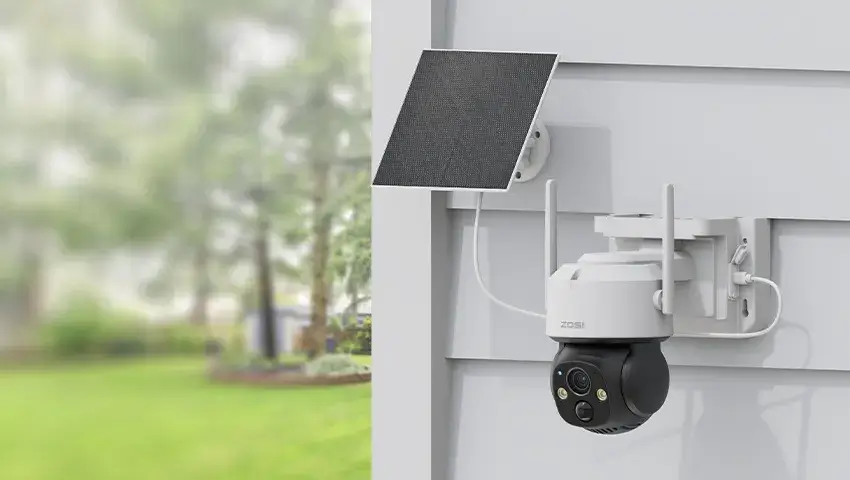
Security cameras installed outdoors are exposed to weather and temperature changes. Extreme heat, cold, moisture, dust, or physical damage can affect camera performance.
Inspect the camera housing, cables, connectors, and mounting area for visible damage. Make sure the lens is clean and that the camera has not been moved away from the intended monitoring area.
For outdoor installations, use a camera designed for outdoor conditions and follow the manufacturer’s installation recommendations.
How to Prevent Recording Problems
Regular maintenance can help reduce the chances of losing important security footage.
First, periodically check that your cameras are online and recording properly. Do not wait until you need footage to discover that the camera stopped recording weeks ago.
Second, monitor available storage and replace aging or unreliable SD cards or hard drives when necessary.
Third, keep your camera firmware and related apps updated. Finally, review recording schedules and motion detection settings whenever you change your network, move a camera, or update your security system.
A quick test every few weeks can help confirm that your camera, storage, and recording settings are working as expected.
FAQs
Why is my security camera showing live video but not recording?
A live view only confirms that the camera is connected and transmitting video. The recording function may still be disabled, incorrectly scheduled, or unable to save footage because of a storage problem. Check recording settings, storage status, and the connection to your NVR or cloud service.
Why does my security camera stop recording when the SD card is full?
This depends on the camera’s storage settings. If loop recording is supported and enabled, the camera may automatically overwrite older footage. If loop recording is unavailable or disabled, recording may stop when the card reaches its capacity.
Why is my camera not recording motion?
Check whether motion detection is enabled and whether the detection area and sensitivity are configured correctly. Objects moving outside the detection zone may not trigger recording. For cameras with person or vehicle detection, also make sure the desired detection type is enabled.
Can a weak Wi-Fi signal stop a security camera from recording?
Yes. A weak or unstable Wi-Fi connection can interrupt communication between the camera and the network. This can affect cloud recording, remote access, and other network-dependent functions. Moving the router closer or improving Wi-Fi coverage may help.
How often should I check my security camera?
It is a good idea to check your cameras regularly rather than only when you need recorded footage. A quick monthly check of the live view, recording history, storage capacity, and camera status can help identify problems early.
Conclusion
When a security camera is not recording, the cause is often something simple, such as a power problem, full storage, incorrect recording settings, weak network connectivity, or motion detection settings.
Start with the basics: check the power supply, network connection, storage, recording mode, and schedule. If your system uses an NVR or DVR, check the recorder and its storage as well. You can then restart the equipment and update the firmware if necessary.
Most importantly, regular testing and maintenance can help ensure that your security camera is ready when you need it. Whether you use a single camera to monitor your front door or a complete security system to protect your property, reliable recording is an essential part of effective home security.