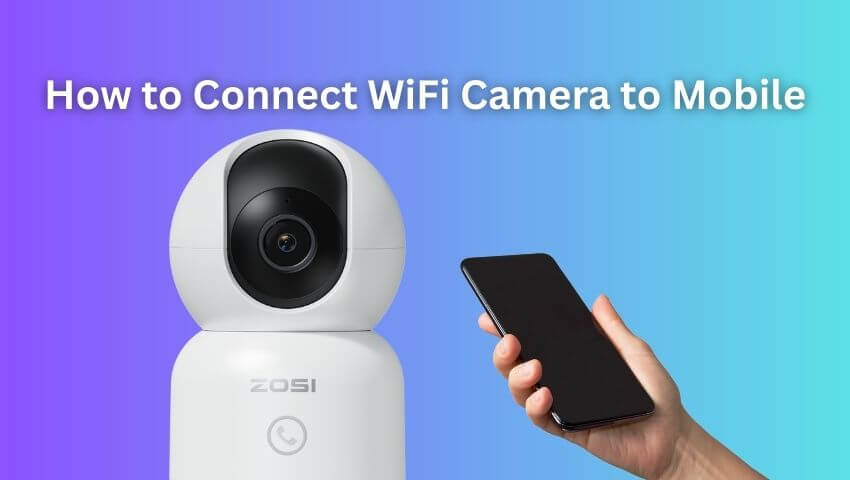
In today’s world, security has become more important than ever. Whether it’s your home, office, or small business, keeping an eye on your property can provide peace of mind. WiFi cameras, also known as IP cameras, have gained popularity due to their easy setup, affordability, and ability to stream footage directly to your mobile device.
While connecting a WiFi camera to your phone may seem tricky at first, it’s actually a straightforward process when you follow the right steps. In this guide, we’ll walk you through everything from preparation and setup to troubleshooting common issues, ensuring your WiFi camera is ready for reliable monitoring anytime, anywhere.
Contents
Understanding WiFi Cameras
Before setting up your camera, it’s helpful to know what makes WiFi cameras different from traditional surveillance systems. These cameras transmit video data wirelessly over your network, allowing remote access via your mobile device. Most modern WiFi cameras offer:
·Live streaming: Watch real-time video on your phone or tablet.
·Motion detection alerts: Get notified when movement is detected.
·Two-way audio: Speak and listen through the camera.
·Cloud storage: Save footage online for future review.
Indoor and outdoor models vary in resolution, night vision, and field of view, but the connection process for your mobile device is largely the same.
Step 1: Prepare Your Camera
Start by preparing your camera and mobile device for setup:
1.Check power: Ensure the camera has a stable power source, either via battery or plug-in.
2.Download the official app: Each camera brand has a dedicated app. Install it from the App Store (iOS) or Google Play (Android).
3.Read the manual: Find default login credentials, QR codes, or WiFi setup instructions to save time during installation.
Being prepared makes the process smoother and helps prevent frustration.
Step 2: Connect to Your WiFi Network
Once your camera is ready, you need to connect it to your WiFi network:
1.Power on the camera: Wait until the indicator light signals pairing mode.
2.Open the app: Look for an option like “Add Device” or “Set Up Camera.”
3.Choose a connection method:
·QR code scanning: Scan the code on the camera or manual.
·WPS setup: Some cameras support WPS for direct connection.
·Manual input: Enter your WiFi SSID and password.
4.Check signal strength: Place the camera within range of your router for a stable connection.
A successful WiFi connection is usually confirmed by the app and a change in the camera’s indicator light.
Step 3: Add the Camera to Your Mobile App
Next, link your camera to your phone through the app:
1.Log in or register: Many apps require an account for cloud storage and remote access.
2.Enter device ID or scan QR code: This uniquely identifies your camera in the app.
3.Name your camera: Use descriptive names like “Living Room” or “Front Door.”
4.Test the live feed: Make sure video streaming works properly.
After this step, your camera should be fully operational on your mobile device.
Step 4: Configure Camera Settings
Optimizing your camera settings ensures reliable performance:
·Motion detection: Adjust sensitivity to reduce false alerts.
·Video quality: Choose HD or standard resolution depending on your internet speed.
·Recording schedule: Decide when the camera should record.
·Storage options: Use local SD cards or cloud services.
·Two-way audio: Test the microphone and speaker if available.
These settings help you make the most of your WiFi camera.
Step 5: Troubleshooting Common Issues
Even with careful setup, some issues may arise:
·Camera won’t connect: Check WiFi password, network frequency (2.4 GHz vs 5 GHz), and router distance.
·App doesn’t detect the camera: Restart the app, phone, or camera, and ensure pairing mode is active.
·Video lags or buffers: Reduce resolution or check your network bandwidth.
·Motion alerts not working: Confirm app notifications and adjust motion sensitivity.
Most problems can be resolved with these simple fixes.
Step 6: Tips for Best Performance
To maximize your camera’s effectiveness:
1.Secure your network: Use strong WiFi passwords and WPA2/WPA3 encryption.
2.Update firmware regularly: Stay protected and enjoy new features.
3.Position cameras strategically: Monitor entrances, blind spots, and high-traffic areas. Avoid direct sunlight or reflective surfaces.
4.Backup recordings: Use SD cards or cloud storage for important footage.
5.Regular checks: Ensure the camera and app are functioning correctly.
Following these tips will keep your surveillance system reliable and effective.
Conclusion
Connecting a WiFi camera to a mobile device is simpler than it may seem. By preparing your camera, following the proper setup steps, and configuring settings carefully, you can monitor your home or business remotely with ease.
Troubleshooting and regular maintenance are key to ensuring your camera performs optimally, while secure networks and strategic placement enhance safety. Whether you’re a first-time user or upgrading your system, these steps will help you make the most of your WiFi camera and provide peace of mind around the clock.
Related Posts