Introduction
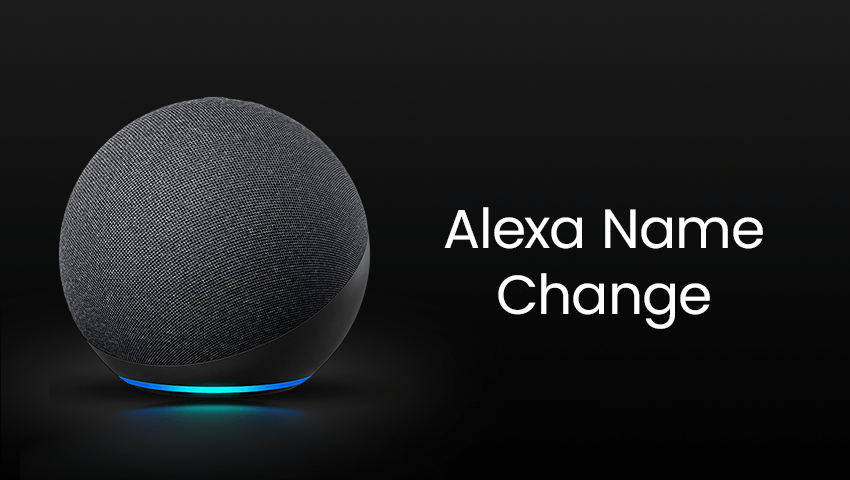
Alexa, Amazon’s intelligent voice assistant, has become a central part of many smart homes. From controlling lights and thermostats to playing music and answering questions, Alexa simplifies everyday tasks. One of its most recognizable features is the wake word, which is the name you call to activate the device.
Many users want to personalize their Alexa experience by changing its wake word. This can help avoid confusion with other devices, make interactions more fun, or simply give Alexa a name that feels more natural in your household. In this guide, we’ll cover everything you need to know about changing Alexa’s name, including what the wake word is, why you might want to change it, a detailed step-by-step guide, tips for smooth usage, common problems, and FAQs.
Contents
What is Alexa Wake Word?
The wake word is the name that triggers Alexa to start listening to your commands. By default, Alexa responds to “Alexa,” but it can also recognize other wake words such as Amazon, Echo, or Computer.
When you say the wake word, Alexa becomes active and waits for your command. This ensures that Alexa only responds when you intend it to, preventing accidental activations. The wake word feature is central to the voice assistant’s usability, making it crucial to select a name that fits your home environment and lifestyle.
Why Change Alexa’s Name?
There are several reasons why you might want to change Alexa’s wake word:
1.Personalization: Choosing a name that feels more personal can make interactions with Alexa more enjoyable. For example, some households prefer to use nicknames or names that match their family or pets.
2.Avoiding Confusion: If you have multiple smart devices or family members with names similar to “Alexa,” changing the wake word can prevent accidental activations.
3.Child-Friendly or Pet-Friendly Interactions: Some families adjust the wake word to make it easier for children or even pets to recognize and interact with the device safely.
Changing the wake word is simple, and it enhances your smart home experience while ensuring Alexa responds only when you want it to.
How to Change Alexa Name (Step-by-Step Guide)
Follow these steps to change Alexa’s wake word easily:
1.Open the Alexa App: Download or open the Amazon Alexa app on your smartphone or tablet. Make sure you’re signed in with your Amazon account.
2.Go to Device Settings: In the app, navigate to the “Devices” tab. Find the specific Alexa device you want to rename and select it.
3.Find the Wake Word Option: Scroll down in the device settings until you see the Wake Word section.
4.Choose a New Wake Word: Alexa allows you to select from available options such as Alexa, Amazon, Echo, or Computer. Pick the one that suits your preference.
5.Save Changes: Tap Save to apply the new wake word. Alexa may take a few seconds to update and recognize the new name.
6.Test the New Wake Word: Try saying the new name to ensure Alexa responds correctly. You may need to repeat this a few times to confirm it works smoothly.
By following these steps, you can quickly personalize your Alexa device without technical complications.
Tips for Using Alexa with a New Name
Once you’ve changed Alexa’s wake word, keep these tips in mind to ensure optimal performance:
1.Train Family Members: Make sure everyone in the household knows the new wake word to avoid confusion.
2.Avoid Similar Names: Choose a name that doesn’t sound like other common words in your home to reduce accidental activations.
3.Check Device Responsiveness: After changing the wake word, periodically test Alexa’s responsiveness to ensure it works in different rooms and distances.
4.Combine with Routines: You can also update your routines in the Alexa app to reflect the new wake word if needed.
Common Problems & How to Fix Them
Even though changing Alexa’s name is straightforward, you may encounter some common issues:
1. Alexa Does Not Respond: If Alexa doesn’t respond to the new wake word, try restarting the device or updating the Alexa app.
2. Wake Word Option Not Available: Make sure your device is compatible and running the latest firmware. Some older models may have limited wake word options.
3.Accidental Activations: If Alexa reacts to similar-sounding words, consider choosing a more distinct wake word.
4.Connectivity Issues: Ensure your Alexa device has a stable Wi-Fi connection, as some settings may not update correctly without internet access.
Following these troubleshooting steps can help you enjoy a smooth Alexa experience with your newly personalized wake word.
FAQ
Q1: Can I set a completely custom name for Alexa?
A: No, you can only choose from the predefined wake words provided in the Alexa app.
Q2: Will changing the wake word affect my routines or skills?
A: No, routines and skills will continue to work. Only the activation word changes.
Q3: How often can I change Alexa’s name?
A: You can change it as many times as you like, but each change may take a few seconds for the device to update.
Q4: Can I change the wake word for multiple Alexa devices at once?
A: Each device needs to be updated individually in the Alexa app.
Conclusion
Changing Alexa’s name is a simple yet effective way to personalize your smart home experience. Whether you want to avoid accidental triggers, make interactions more fun, or choose a name that suits your family, Alexa offers flexibility through its wake word options.
By following this step-by-step guide, testing the new wake word, and applying helpful tips, you can ensure Alexa responds quickly and accurately. Personalizing your Alexa device makes your home smarter, more efficient, and more enjoyable for everyone.