Why Is Alexa Not Working? Easy Fixes for Alexa Not Responding or Connecting
Smart home devices are supposed to make life easier. But when Alexa suddenly stops responding, won’t connect to WiFi, or refuses to control your smart devices, it can quickly become frustrating.
Whether you use Alexa to play music, control lights, manage your security cameras, or automate your home, connection problems can interrupt your entire smart home experience. The good news is that most Alexa issues are surprisingly easy to fix.
In this guide, we’ll walk through the most common reasons Alexa stops working, how to fix connection problems, how to troubleshoot Alexa calling issues, and how to keep your smart security cameras running smoothly even when Alexa is offline.
Contents
Why Is My Alexa Not Responding?
There are several reasons why Alexa may stop responding. Some problems are caused by internet issues, while others are related to device settings, outdated software, or smart home connectivity problems.
Here are the most common causes:
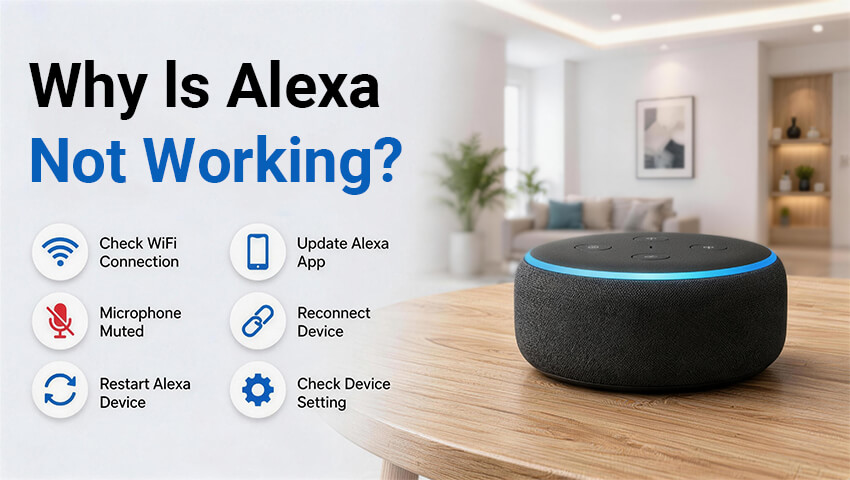
1.Weak or Unstable WiFi Connection
Alexa devices rely heavily on a stable internet connection. If your WiFi signal is weak or keeps dropping, Alexa may:
— Ignore voice commands
— Respond slowly
— Fail to control smart devices
— Disconnect from your network entirely
This is especially common in larger homes where the Echo device is far from the router.
2.The Microphone Is Muted
Sometimes the simplest explanation is the correct one. If the microphone mute button is enabled, Alexa cannot hear your voice commands.
Most Echo devices display a solid red ring or red light when the microphone is muted.
3.Temporary Alexa Server Issues
Occasionally, Amazon’s Alexa servers may experience outages or service interruptions. During these periods, Alexa may:
— Stop responding
— Fail to process commands
— Experience delays
— Lose smart home functionality
These outages are usually temporary.
4. Outdated Alexa App or Firmware
If your Alexa app or Echo device software is outdated, compatibility issues may occur. This can affect:
— Smart home routines
— Device discovery
— Calling features
— Camera integration
— Voice responsiveness
5. Smart Home Device Compatibility Problems
Some third-party smart devices may lose connection with Alexa after firmware updates or network changes.
Security cameras, smart plugs, and smart lights may suddenly appear “offline” in the Alexa app even though they still work normally in their own apps.
How to Fix Alexa Not Working or Responding
Now let’s go through the most effective solutions.
1. Check Your Internet Connection
Since Alexa depends on WiFi, your internet connection should always be the first thing you check.
1.1 Restart Your Router
Unplug your router and modem for about 30 seconds, then reconnect them. Wait a few minutes for the network to fully restart.
This simple step often fixes:
— Alexa offline errors
— Slow responses
–Smart home connection failures
1.2 Move Alexa Closer to the Router
Walls, floors, and large furniture can weaken WiFi signals. If your Echo device is too far from the router, connection problems may occur.
Try moving the device:
— Closer to the router
— Away from microwaves or TVs
— Away from thick walls or metal surfaces
1.3 Reduce Network Congestion
Too many connected devices can overload your WiFi network.
If possible:
–Disconnect unused devices
— Upgrade to a dual-band router
— Use a mesh WiFi system for larger homes
Strong WiFi coverage is essential for stable Alexa performance.
2. Restart Your Alexa Device
A quick restart can solve many temporary glitches.
How to Restart Alexa
— Unplug the Echo device
— Wait about 30 seconds
— Plug it back in
— Allow the device to reboot completely
After restarting, test Alexa again with a simple command like:
“Alexa, what’s the weather today?”
3. Check If the Microphone Is Muted
Many users accidentally mute Alexa without realizing it.
Look for:
— A red ring
— A red microphone icon
— No response after saying “Alexa”
Simply press the microphone button again to re-enable voice listening.
4. Update the Alexa App and Device Firmware
Outdated software can cause connection and compatibility issues.
4.1 Update the Alexa App
Go to:
— Apple App Store
— Google Play Store
Check for available updates and install the latest version.
4.2 Update Echo Firmware
Most Echo devices update automatically. However, you can manually trigger updates by:
–Keeping the device powered on
— Staying connected to WiFi overnight
You can also ask:
“Alexa, check for software updates.”
5. Reconnect Alexa to WiFi
If Alexa still won’t connect, reconnect the device to your network.
Steps to Reconnect Alexa
— Open the Alexa app
— Go to Devices
— Select your Echo device
— Tap “Change” next to WiFi Network
— Follow setup instructions
Make sure you connect to the correct WiFi band if your router supports both 2.4GHz and 5GHz.
6. Reset Alexa to Factory Settings
If nothing else works, a factory reset may solve deeper software problems.
When to Reset Alexa
— Device keeps disconnecting
— Alexa won’t respond at all
— Smart home features constantly fail
— Setup problems continue after troubleshooting
Reset methods vary by Echo model, but most involve holding the Action button for about 20 seconds.
After resetting, you’ll need to set up the device again in the Alexa app.
How to Fix Alexa Smart Home Device Connection Problems
Sometimes Alexa works normally, but your smart home devices do not.
This is very common with:
Security cameras
Smart lights
Doorbells
Smart plugs
Smart locks
1. Alexa
Not Controlling Smart Devices
If Alexa says:
“Device is unresponsive”
try these solutions.
2. Re-Link Smart Home Accounts
Sometimes the connection between Alexa and third-party devices expires.
To fix this:
— Open the Alexa app
— Go to Skills & Games
— Disable the device skill
— Re-enable it
— Sign back into your account
This often restores smart device control immediately.
3. Rediscover Smart Devices
After reconnecting accounts, ask:
“Alexa, discover devices.”
Alexa will scan your network and reconnect supported devices.
How to Fix Alexa Security Camera Problems
Security cameras are one of the most common smart home devices connected to Alexa.
However, users often experience:
— Live view not loading
— Camera feed unavailable
— Alexa can’t find the camera
— Delayed notifications
1. Check Camera Compatibility
Not all cameras support Alexa integration.
Before troubleshooting further, confirm that your camera officially supports:
— Alexa Skills
— Echo Show live view
— Voice commands
Many modern WiFi security cameras support Alexa, but some older models may not.
2. Update Camera Firmware
Outdated firmware can cause camera integration failures.
Open your camera app and:
— Check for firmware updates
— Install the latest version
— Restart the camera afterward
3. Re-Enable the Alexa Skill
Sometimes the camera skill disconnects from Alexa after updates.
Disable and reconnect the camera skill through the Alexa app.
This is one of the fastest ways to restore camera functionality.
How to Fix Alexa Calling Not Working
Alexa calling and communication features are useful for families and smart home users, but sometimes they stop working.
Common issues include:
— Calls not connecting
— No audio
— Contacts not syncing
— Communication unavailable
1. Check Communication Permissions
Open the Alexa app and make sure:
— Calling & Messaging is enabled
— Contacts permissions are allowed
— Your phone number is verified
Without permissions, Alexa communication features may fail completely.
2. Restart Alexa Communication Services
Sometimes communication services simply need refreshing.
Try:
— Signing out of the Alexa app
— Restarting your phone
–Rebooting your Echo device
Then test Alexa calling again.
How to Maximize Security Camera Functionality Even When Alexa Stops Working
Even if Alexa experiences issues, your security cameras should still protect your home.
Here’s how to maintain reliable camera performance.
1. Use the Camera’s Dedicated Mobile App
Most smart cameras continue working normally even if Alexa integration fails.
You can still:
— Watch live view
— Receive motion alerts
— Review recordings
— Adjust settings
Apps from brands like Reolink, Eufy, Ring, and others often provide more advanced features than Alexa itself.
2. Enable Local Recording or SD Card Storage
Cloud services and Alexa integrations sometimes experience outages.
Using:
— Local storage
— SD cards
— NVR systems
ensures your cameras continue recording even during internet interruptions.
3. Set Up Smart Alerts Independently
Motion alerts should not depend entirely on Alexa.
Configure notifications directly through your camera app for:
— Person detection
— Motion detection
— Package detection
— ntrusion alerts
This provides more reliable home monitoring.
4. Keep Firmware Updated
Regular firmware updates improve:
— Security
— Device stability
— Smart home compatibility
— Alexa integration reliability
Keeping all devices updated reduces long-term connectivity problems.
Prevent Future Alexa Problems
Once Alexa is working again, these tips can help prevent future issues.
1. Maintain Strong WiFi Coverage
Use mesh WiFi systems or signal extenders if needed.
2. Avoid Overloading Smart Routines
Too many complex routines can slow Alexa responses.
3. Regularly Restart Smart Devices
Occasional restarts help refresh network connections.
4. Use Compatible Smart Devices
Certified Alexa-compatible devices usually offer more stable performance.
FAQs
Q: Why does Alexa suddenly stop responding?
A: This is usually caused by WiFi problems, muted microphones, software glitches, or temporary server outages.
Q: Why is Alexa connected but not working?
A: Alexa may appear connected to WiFi but still experience internet access issues or software problems.
Restarting the device often helps.
Q: Why won’t Alexa discover my security camera?
A: Possible reasons include:
Unsupported camera model
Incorrect skill setup
Outdated firmware
Network connection issues
Q: Can security cameras still work if Alexa is offline?
A: Yes. Most smart security cameras continue functioning through their own mobile apps even if Alexa is unavailable.
Q: How do I reset Alexa without the app?
A:Most Echo devices can be reset by pressing and holding the Action button for about 20 seconds until the light ring changes color.
Conclusion
Alexa is an incredibly useful smart home assistant, but occasional connection issues are normal. Fortunately, most Alexa problems can be solved with a few simple troubleshooting steps.
Whether Alexa stops responding, disconnects from WiFi, or fails to control your security cameras, checking your internet connection, updating software, reconnecting smart devices, and restarting hardware can often restore functionality quickly.
Most importantly, remember that your smart security cameras can continue protecting your home even when Alexa experiences temporary issues. By using dedicated camera apps, enabling local storage, and keeping firmware updated, you can maintain a reliable and secure smart home system year-round.