Contents
Introduction
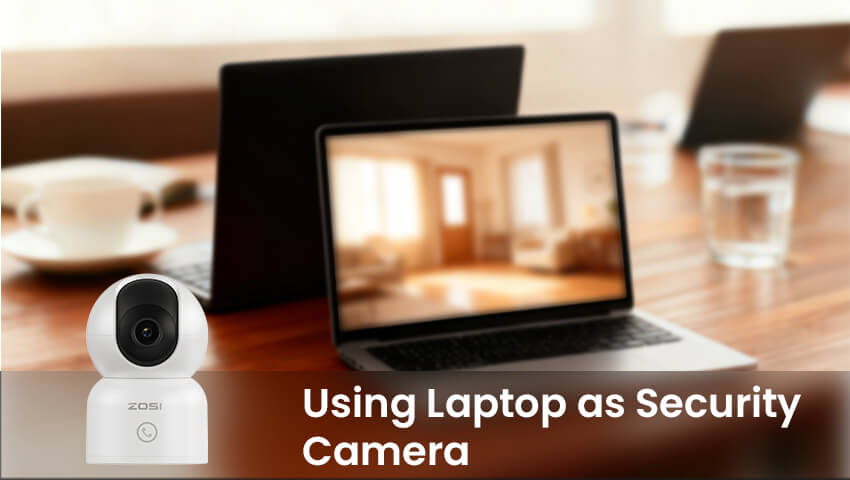
Security cameras have become a daily essential for homes, apartments, offices, and even dorm rooms. But what if you need a monitoring solution right now—and you don’t want to buy another device?
Good news: your laptop can be turned into a fully functional security camera with just a few tools and minutes of setup.
Whether you want to check on pets while you’re out, monitor your front door, or keep an eye on your workspace, your laptop’s built-in webcam can serve as a quick and effective monitoring device. In this guide, we’ll walk you through everything you need to know—software options, setup steps, remote access, tips for better performance, and frequently asked questions.
Why Use a Laptop as a Security Camera?
Most people already have a laptop at home, making it a convenient emergency or short-term security solution. You don’t need to buy an expensive camera system or wait for shipping—your webcam becomes the monitoring device instantly.
Common scenarios where a laptop works well:
Pet monitoring while you’re at work
Watching your front door from the inside
Monitoring kids, elderly family members, or roommates
Keeping an eye on your home office or bedroom
Temporary setups—Airbnb, dorms, hotel stays
Monitoring a small business, shop counter, or stockroom
As a backup when your main camera system fails
Of course, a laptop cannot replace a real security camera for long-term use, but as a temporary monitoring tool, it’s surprisingly powerful—especially with the right software.
Can a Laptop Really Work as a Security Camera?
Yes. A laptop webcam can capture live video, detect movement, record clips, send alerts, and even stream remotely to your phone. Today’s monitoring software is extremely advanced and can turn any laptop into a mini NVR.
Advantages
No additional cost
Easy setup
Requires no technical skills
Built-in power source
Works with free apps
Instant monitoring
Limitations
Narrow field of view compared to real cameras
Webcam quality is usually lower
Laptop must stay open and awake
Not suitable for outdoor use
Not designed for 24/7 long-term recording
Still, for short-term monitoring, it works extremely well.
Best Software to Turn a Laptop into a Security Camera
Here are the most reliable apps—organized by complexity, features, and use cases.
3.1 Best Free Options
● Yawcam (Windows)
A classic but lightweight webcam security tool.
Features include motion detection, recording, and live streaming.
Best for: quick setups and low-end laptops.
● Agent DVR / iSpy (Windows, macOS, Linux)
One of the most powerful free/paid hybrid systems.
Supports multiple cameras, AI motion detection, remote access, and cloud storage.
Best for: users who want advanced features.
● OBS Studio + Plugins
With the right plugins, OBS becomes a monitoring tool.
Best for: tech-savvy users who want full customization.
● Alfred Camera (Web version)
Access your webcam through the Alfred web app—simple and cloud-based.
Best for: users who want a free cloud viewing experience.
3.2 Paid or Advanced Options
● SecuritySpy (macOS)
A professional-grade monitoring suite for Mac users.
Best for: macOS users who want automation and scheduled recording.
● WebcamXP (Windows)
Commercial software with strong privacy controls and remote viewing.
Best for: users who need LAN-only secure access.
Step-by-Step: How to Use Your Laptop as a Security Camera
Step 1: Choose the Right Spot
Placement makes a huge difference in what your laptop can capture.
Where to put your laptop:
– Near windows or doors (for entry monitoring)
– On a stable table facing the area you care about
– At chest or eye level for best visibility
– In a location with consistent lighting
– Close to a wall socket to avoid battery drain
Avoid placing it where strong backlighting hits the camera directly, such as facing a bright window—this can make footage unusable.
Step 2: Install Monitoring Software
For demonstration, let’s use Agent DVR (free and powerful).
Agent DVR Setup:
– Download and install from the official site
– Open the software and allow webcam access
– Add your built-in webcam as a video source
– Set resolution and frame rate
– Configure audio if needed
– Test live view
Within minutes, you’ll see real-time video streaming from your laptop camera.
Step 3: Enable Essential Features
Motion Detection
Turn on motion detection to get alerts only when something happens.
You can:
– Highlight detection zones
– Adjust sensitivity
– Enable push notifications
– Trigger automatic recording
Night Mode
Laptops don’t have infrared night vision, but you can improve visibility by:
– Adding a small desk light
– Using low-light enhancement mode if supported
Recording Options
-Choose from:
-Continuous recording
-Motion-triggered recording
-Timed recording
-Cloud or local storage
Step 4: Enable Remote Viewing on Your Phone
Most software provides browser access or an app.
For example, Agent DVR provides:
– Local network viewing
– Remote viewing via cloud relay
– Secure login
After enabling remote access, you can monitor your home from anywhere using your iPhone or Android device.
Tips to Improve Video Quality & Monitoring Performance
Because laptops aren’t designed as security devices, optimizing the setup helps a lot.
1. Improve Lighting
A small LED lamp can dramatically improve footage clarity.
2. Use an External Webcam
Costs $10–$30
Offers:
Wider field of view
Better low-light performance
Higher resolution
3. Keep Your Laptop Cool
24/7 operation can overheat older laptops.
4. Use a Privacy Shutter When Not Monitoring
Protects yourself from accidental webcam access.
5. Disable Sleep Mode
Your laptop must stay awake:
Disable sleep timers
Turn off auto screen lock
Keep it plugged in
6. Use a Stand for Better Angles
Raises the camera to natural eye level.
Security and Privacy Precautions
Turning your laptop into a camera does introduce privacy concerns.
What to Avoid
Do not expose your camera feed publicly
Do not access your camera over public WiFi
Avoid port forwarding unless you understand network security
Recommended Safety Measures
Use strong passwords
Enable 2FA if available
Only install trusted software
Turn off remote access when not needed
Cover your webcam when monitoring is off
When Should You Consider a Real Security Camera?
A laptop works—but it can’t replace a dedicated security device.
You should upgrade to a real camera when:
You need 24/7 continuous recording
You need outdoor monitoring
You need person, vehicle, or package detection
You want multiple camera feeds
You want reliable night vision
You want mobile alerts with high accuracy
Modern cameras like ZOSI WiFi and PoE cameras offer:
4K UHD clarity
Smart motion detection
Color night vision
Weatherproof construction
Remote viewing with app
Continuous recording to NVR/SD card
AI motion alerts
A laptop is a great temporary solution—but a real security camera system gives long-term peace of mind.
FAQ:
Q: Can a laptop record security footage while the lid is closed?
A: Generally no. Most laptops disable webcams when the lid is closed.
You must keep the lid open, or use an external USB webcam.
Q: Is it safe to use monitoring software?
A: Yes, as long as you use trusted apps. Avoid unknown or unverified programs that request unnecessary permissions.
Q:Can I monitor my laptop camera from my phone?
A:Yes. Most monitoring apps (Agent DVR, Alfred, iSpy) allow remote viewing through apps or browsers.
Q:Can I use both laptop camera and external webcam at the same time?
A:Yes. Some software supports multiple video sources.
Conclusion
Using your laptop as a security camera is one of the simplest and fastest ways to monitor your home, office, or pets without buying additional equipment. With free tools, smart placement, and proper setup, your laptop can send alerts, record footage, and provide remote access just like an entry-level security camera.
However, for long-term or high-security needs, investing in a dedicated security camera—such as a ZOSI indoor or outdoor WiFi camera—provides better image quality, 24/7 reliability, and smarter detection features.